
Introduction
You can take advantage of cloud hosting for attachments to make them available at all times. Backup copies of files are already in place in the cloud, but some clients who have critical processes in Octopus prefer to keep a local copy of their attachments in case their external network fails or Octopus becomes unavailable.
AttachmentDownloader downloads all Octopus attachments from the cloud to the local network.
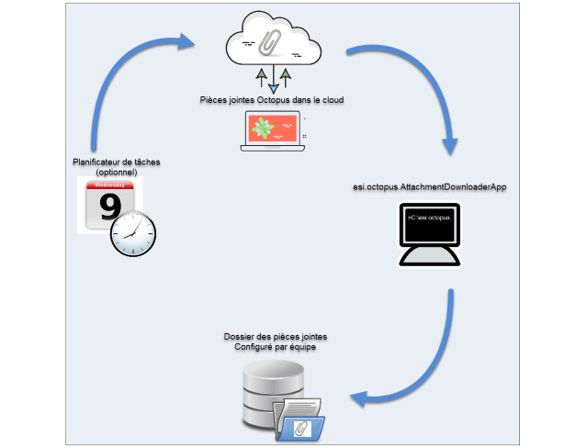
How it works
The AttachmentDownloader program downloads all of a team's hosted attachments, either manually or automatically using a Windows scheduled task.
The program runs for one team at a time and downloads the files into the attachments folder configured for that team.
Prerequisites
- Have attachments hosted by Octopus.
- Create an Octopus system account that will be associated with the task. See the article Octopus System Account.
- Create a folder on the local network where the attachments will be stored.
- If the database contains more than one team, we recommend a separate folder for each team.
- The full path of the folder must be added to the configuration of each team that uses AttachmentDownloader, from the menu Tools > Options > 3- Important general options > Network directory containing attached files.
- Access rights for each team's agents must be assigned according to how the files will be used.
 Warning for clients who have switched from local attachments mode to hosted attachments mode! A folder was already configured in the options, and it probably still contains attachments that have not yet been uploaded to the cloud. It is important not to change the path of this folder. |
| What you need to know: The purpose of keeping a local copy in addition to the hosted copy is not to modify the files locally, but to have access to them in the event of an outage. Normally, AttachmentDownloader should be used with the ForceReplaceFiles parameter to ensure that the local copy is up to date. Since the local copy will be overwritten at the next download, you must make sure that any changes made to attachments are sent back to Octopus or temporarily saved elsewhere during an outage. |
Launching AttachmentDownloader
AttachmentDownloader is a program that runs from a command line (DOS). It is designed this way to be easy to automate.
To launch the program ESI.Octopus.AttachmentDownloaderApp.exe , open a command prompt (DOS) window and navigate to the Octopus directory. Then enter the command line. (See Command line examples).
| Important: The current directory must be the directory where the program ESI.Octopus.AttachmentDownloaderApp.exe is located. |
By default, the Octopus directory is C:\Program Files\Octopus OR \%homepath%\AppData\Local\Octopus.
Other examples of directories where Octopus may be located:
- For Windows 7 and later
C:\Users\slevesque\AppData\Local\Octopus. - For Windows XP
C:\Documents and Settings\slevesque\Local Settings\Application Data\Octopus.
|
What you need to know: Each time the program runs, a .LOG file is created using the format ToolName_YYYYMMDD_HHMMSS.log,
Use this file to view the results of the command's execution and any errors. See also the article Octopus Tools | Log File Maintenance on the importance of managing your files. |
Available parameters
Several parameters are available, including 3 required ones, to run AttachmentDownloader:
Required parameters
- /Login
- Octopus user name.
- /Password
- Octopus password.
- /Team
- The number of the team for which the attachments will be downloaded.
- By default, the IT team is team number 1.
- How to find a team's number ?
- The number of the team for which the attachments will be downloaded.
Example: ESI.Octopus.AttachmentDownloaderApp.exe /Login:system /Password:octo /Team:1
Optional parameters
- /ForceReplaceFiles
- Although this parameter is not required, it should logically always be used to ensure that the local copy of the attachment is the most up-to-date copy.
- Overwrites the old copy of an attachment with the cloud version.
- Without this parameter, AttachmentDownloader will simply add the new attachments without updating those that have already been downloaded.
- /LogFilePath
- Overrides the name and location of the log file. By default, the file is named AttachmentDownloaderApp_YYYYMMDD_HHMMSS.log and is located in the Octopus directory.
- If you move the file to a directory other than the Octopus directory, make sure that this directory exists (the system cannot create the directory).
- In addition, the path must include the file name.
- To learn more about the location of Octopus files, see the article Octopus Installation Directory.
- Example : /LogFilePath:C:\LogFiles\JournalAttachmentDownloader.log
- /WaitKeyPress
- Forces the program to wait for a key press after the import has run. That is, the (DOS) window stays open until a key is pressed.
- This option can be useful during testing, to make sure that no problem affects your command line.
- Please note that this parameter must not be used for recurring tasks.
- /PurgeLogs
- Automatically deletes old log files.
- The parameter sets the number of days of log files you want to keep.
- For more information, see the article Octopus Tools | Log File Maintenance.
Examples
- Download command line with the basic parameters.
ESI.Octopus.AttachmentDownloaderApp.exe /Login:system /Password:octo /Team:1 /ForceReplaceFiles
- Download command line with the optional parameters.
ESI.Octopus.AttachmentDownloaderApp.exe /Login:system /Password:octo /Team:1 /ForceReplaceFiles /WaitKeyPress /LogFilePath:G:\DossierABC
Automating the AttachmentDownloader program
To automate downloads using AttachmentDownloader, see the article Windows Scheduled Tasks.
Operations log
While running, AttachmentDownloader creates an operations log in addition to displaying the results on screen. This log is saved in the file AttachmentDownloaderApp_YYYYMMDD_HHMMSS.log and is located in the same directory as the DataImporter executable, that is, in the Octopus directory.
Thank you, your message has been sent.