
Observed behavior
When you try to access an activity that contains an image located on your local network, an error message is displayed:
|
The web page is attempting to access a resource that is not authorized in your Octopus environment. |
Error message: 'LocalNetwork' not in the list of authorized permissions :
Since when?
The behavior you are noticing was recently introduced starting with version 6.0.1400, following an update of the Chromium browser embedded in Octopus. It occurs when a web page (the activity log, for example) tries to access a resource located on your local network.
In Chrome, you would see a message similar to this:
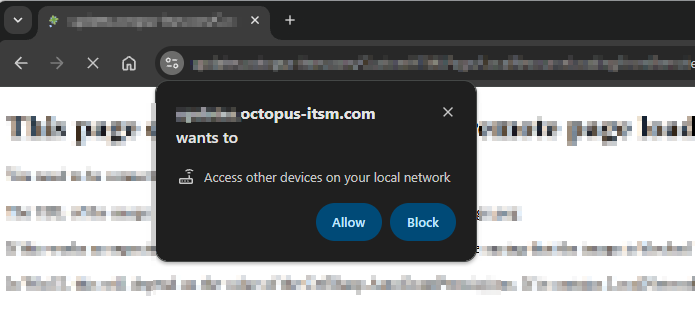
An activity in the request contains images that will be downloaded from a server internal to your organization, which is perfectly legitimate. However, for Chromium, it is not trivial to determine that this is legitimate.
Explanation
In Octopus, we decided to block this action by default because it is a security improvement provided by Chromium (the technology behind the embedded browser). In addition, in the context of Octopus, this permission takes on a particular nuance: since Octopus controls the content of the pages displayed, the direct risk posed through Octopus itself is limited — the code executed comes from a source that we control and have audited, not from an unpredictable third party.
Moreover, it is difficult to determine in advance, and automatically, whether this should be allowed.
Solution
We can, however, change a configuration to allow the content to be downloaded automatically. If you understand the associated risks, there is an option we can enable; once it is activated, you will no longer see the message and the images will display.
Contact our Service Desk and request a configuration change to enable the option.
* IMPORTANT ; please note that, for security reasons, this request must be submitted by an authorized administrator of your IT team.
Please specify the following in your request :
- Enable the option: CefSharp.AutoGrantPermission
- Specify the team name and number
Thank you, your message has been sent.